My desktop was a disaster zone. Folders I created months ago are sitting next to screenshots from yesterday. Application shortcuts mixed with documents I downloaded and never opened. Every time I needed to find something, I spent minutes searching through the chaos.
I’ve tried manually organizing my desktop multiple times. I would spend an hour creating folders, sorting files, and feeling accomplished. Then, within a week, everything was messy again. The problem was not my organizational skills. It was that Windows does not make desktop management easy or automatic.
That frustration led me to try iTop Easy Desktop, a desktop organizer software promising to transform cluttered workspaces. I wanted to see if software could solve what manual effort could not. After using it for several weeks, I have observations about what worked, what did not, and whether it is worth trying.
What iTop Easy Desktop Actually Does
Before getting into my experience, understanding what this software does helps set expectations. iTop Easy Desktop is not just a file organizer. It combines several tools in one package.
Core features I tested:
- Desktop boxes that group icons and files into containers
- Wallpaper customization with thousands of options
- An AI Assistant called PawPal that provides chat and reminders
- Private Box for password-protecting sensitive files
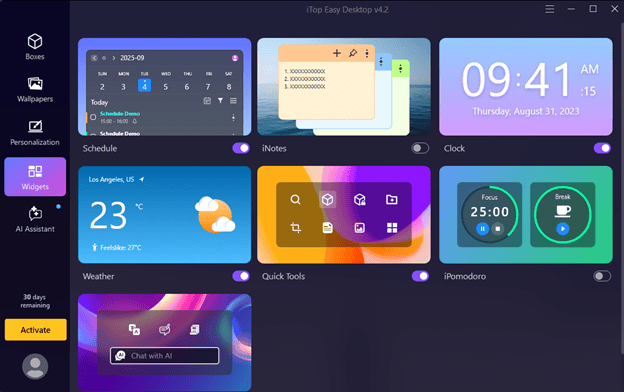
- Widgets including notes, calendar, weather, and Pomodoro timer
- Quick actions for hiding all icons or clearing clutter instantly
The software installs on Windows 10 and 11. Version 4.2 that I tested is freeware, meaning the basic features cost nothing.
My Step-by-Step Experience Setting Up iTop Easy Desktop
Getting started with iTop Easy Desktop took less time than I expected. The process was straightforward, even though I am not particularly technical.
Step 1: Download and Install the Software
I downloaded the installer from the iTop Easy Desktop official website. The setup file ran without issues on my Windows 11 machine. Installation took about three minutes.
Step 2: Organize Desktop Icons into Boxes
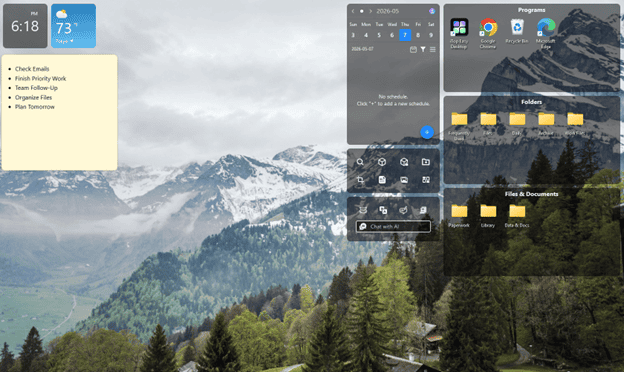
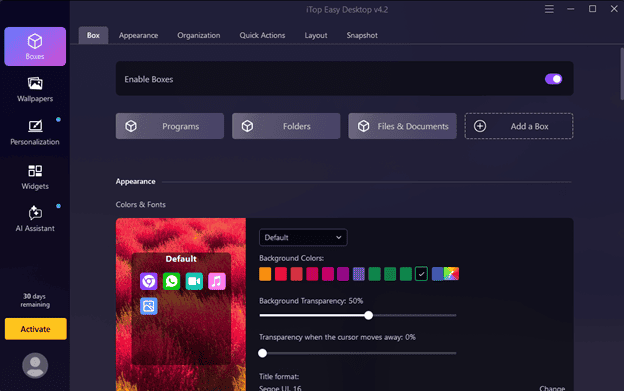
The first feature I tested was desktop boxes. These containers group related items together. I created my first box by right-clicking on the desktop and selecting “Create Box.”
The software prompted me to choose between List Mode and Tab Mode. List Mode shows files like Windows Explorer. Tab Mode creates tabs similar to a web browser. I started with List Mode because it felt more familiar.
What I liked about this process:
- Drag-and-drop functionality worked smoothly
- Boxes could be resized and positioned anywhere on the desktop
- Right-click options allowed customizing which columns to display
- The visual organization was immediate and satisfying
What created minor frustration:
- Initial confusion about List Mode versus Tab Mode
- Had to manually decide organizational structure
Step 3: Customize the Desktop Appearance
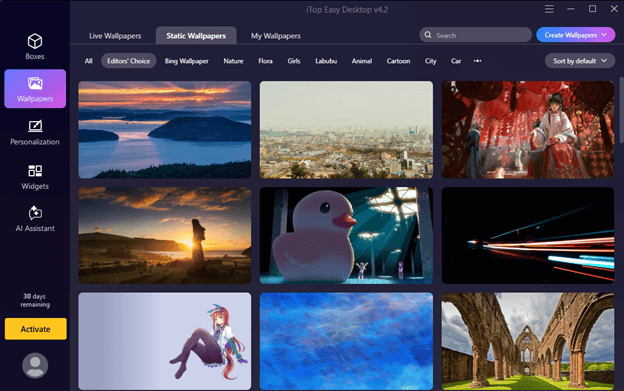
After organizing files, I explored the wallpaper features. iTop Easy Desktop includes access to thousands of wallpapers across different categories. Nature scenes, abstract art, cityscapes, and more filled the selection.
Changing wallpapers was simple. I clicked the wallpaper icon in the software interface. A gallery appeared with categories on the left. Clicking any image applied it instantly. The software also supports setting wallpapers to change automatically on a schedule.
Step 4: Test the AI Assistant and Additional Tools
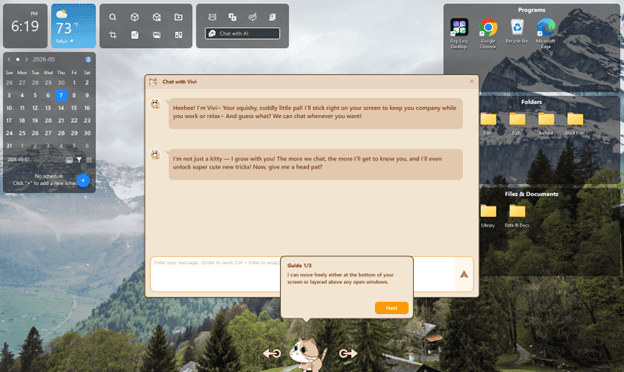
The AI Assistant called PawPal was the feature I was most curious about. A small cat character appears on your desktop. It wanders around, sits on windows, and responds to mouse interactions.
I clicked on PawPal, and a chat interface opened. I could type questions and receive responses similar to ChatGPT. I tested this with several queries:
- Asking for Python code examples
- Requesting text summarization
- Getting weather information
- Setting reminders for tasks
The AI responses were helpful for quick questions. The translation feature worked well when I needed to convert English text to Spanish. For code debugging, it provided useful suggestions, though not always perfect solutions.
Additional tools I found useful:
- iNotes widget for quick note-taking without opening separate apps
- Schedule widget showing upcoming calendar events
- Private Box for password-protecting tax documents and financial files
- Screenshot tool with easy access to saved images
What Actually Worked Well
After several weeks of daily use, certain features proved genuinely valuable.
| Feature | Usefulness Rating | Why It Worked |
| Desktop Boxes | Very High | Eliminated visual clutter without hiding files completely |
| One-Click Hide Icons | High | Quick cleanup before screen sharing in meetings |
| Wallpaper Rotation | Moderate | Made the workspace feel fresh without effort |
| Private Box | High | Peace of mind for sensitive files |
| AI Assistant | Moderate | Convenient for quick questions, not revolutionary |
| Widgets | Moderate to High | Replaced several standalone apps I used previously |
Is Desktop Organizer Software Worth Using?
This question has a nuanced answer. For people drowning in desktop chaos, desktop organizer software like iTop Easy Desktop provides real value. The organizational structure it imposes would take significant willpower to maintain manually.
However, if your desktop stays relatively clean naturally, the software might be unnecessary overhead. The features are useful but not essential for organized people.
Who benefits most from this software:
- People with chronically messy desktops who struggle with manual organization
- Users wanting quick icon hiding for presentations or screen sharing
- Anyone interested in desktop customization beyond Windows defaults
- Workers needing password-protected file containers
- People who like having productivity widgets accessible
Who might not need it:
- Users already maintain organized desktops
- People prefer minimalist software installations
- Anyone wanting enterprise-grade file management (this targets individual users)
- Users on older computers, where additional software impacts performance
My Final Verdict After Weeks of Use
I am still using iTop Easy Desktop weeks after installation. That fact speaks louder than any feature list. The software solved my desktop organization problem in a way that manual efforts never could.
Would I recommend iTop Easy Desktop to others? Yes, with the caveat that experiences vary based on desktop habits. Try it for a week. If your desktop stays cleaner and finding files becomes easier, keep it. If you find yourself fighting against the interface or not using the features, Windows default management might suit you better.
My desktop chaos is finally under control. That outcome was worth the small effort of trying new software.